Since there are no official x64 drivers for the Sony MZ-N505 for Windows 10, the installation of the drivers require some different steps. These steps might also work for Windows 11, but I have not tested this myself.
Use the key combination WINDOWS + R to open the Run screen.
Type cmd and click OK to open the Command Prompt.
Copy the following command, paste it into CMD and press enter. reg.exe add "HKCU\Software\Classes\CLSID\{86ca1aa0-34aa-4e8b-a509-50c905bae2a2}\InprocServer32" /f /ve
Restart File Explorer or your computer for the changes to take effect.
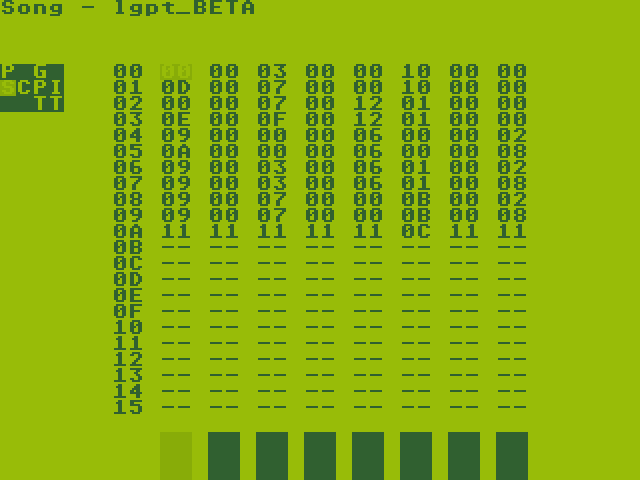
There finally is a working stable release of Little Piggy Tracker on the Miyoo Mini Plus! Although the volume of sound on this device sucks ass, it’s just loud enough to somewhat work with it.
Create a folder with the name LGPT.pak and copy the files from bin in there.
In the LGPT.pak folder, create a Samples and a Tracks folder (you can copy the demo song to Tracks).
Edit the next two lines in the config.xml file (located in LGPT.pak) into the following: <ROOTFOLDER value="/mnt/SDCARD/Tools/miyoomini/LGPT.pak/Tracks"/> <SAMPLELIB value="/mnt/SDCARD/Tools/miyoomini/LGPT.pak/Samples"/>
Mount the micro SD card to the computer.
Copy the LGPT.pak folder to the Tools folder on your SD card.
Done!
You can now unmount the SD card and put it back into your Miyoo Mini Plus.
To launch the application, go to Tools and open LGPT.